

js的缓存工具
6个月前 项目中用到的一个localStorage工具,可以用于token存储、数据缓存,支持过期...

思路分析
<!DOCTYPE html><br />
<html lang="zh-CN"><br />
<head><br />
 <meta charset="UTF-8"><br />
 <meta name="viewport" content="width=device-width, initial-scale=1.0"><br />
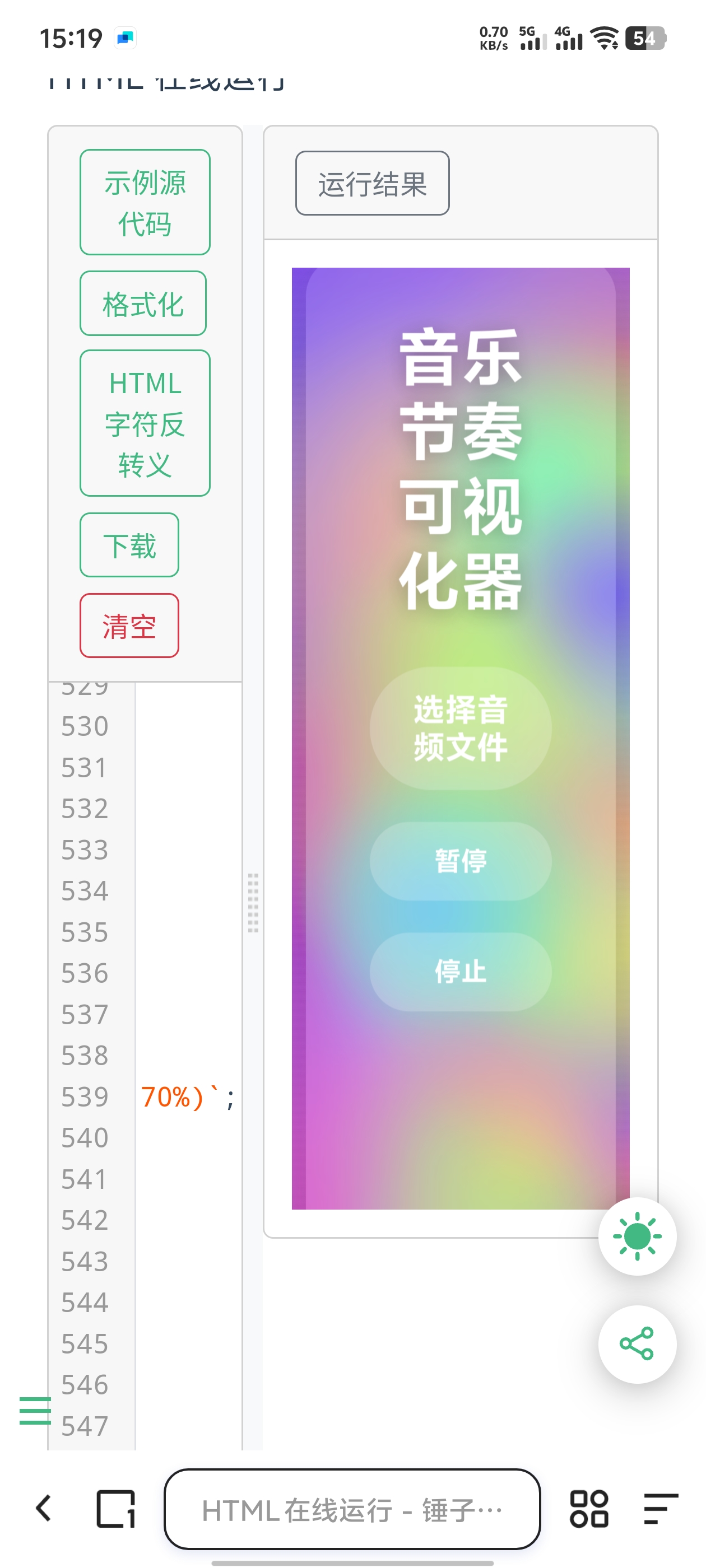
 <title>音乐节奏可视化背景</title><br />
 <style><br />
     * {<br />
         margin: 0;<br />
         padding: 0;<br />
         box-sizing: border-box;<br />
     }<br />
     <br />
     body {<br />
         font-family: 'Arial', sans-serif;<br />
         min-height: 100vh;<br />
         overflow: hidden;<br />
         display: flex;<br />
         justify-content: center;<br />
         align-items: center;<br />
         background: linear-gradient(135deg, #6e8efb, #a777e3);<br />
         transition: background 0.2s ease;<br />
     }<br />
     <br />
     .container {<br />
         text-align: center;<br />
         padding: 2rem;<br />
         background: rgba(255, 255, 255, 0.1);<br />
         backdrop-filter: blur(10px);<br />
         border-radius: 20px;<br />
         box-shadow: 0 8px 32px rgba(0, 0, 0, 0.2);<br />
         z-index: 10;<br />
         max-width: 90%;<br />
         width: 500px;<br />
     }<br />
     <br />
     h1 {<br />
         color: white;<br />
         margin-bottom: 1.5rem;<br />
         text-shadow: 0 2px 10px rgba(0, 0, 0, 0.3);<br />
     }<br />
     <br />
     .controls {<br />
         display: flex;<br />
         flex-direction: column;<br />
         gap: 1rem;<br />
         margin-bottom: 1.5rem;<br />
     }<br />
     <br />
     input[type="file"] {<br />
         display: none;<br />
     }<br />
     <br />
     label, button {<br />
         padding: 12px 20px;<br />
         background: rgba(255, 255, 255, 0.2);<br />
         color: white;<br />
         border: none;<br />
         border-radius: 50px;<br />
         cursor: pointer;<br />
         transition: all 0.3s ease;<br />
         font-weight: bold;<br />
     }<br />
     <br />
     label:hover, button:hover {<br />
         background: rgba(255, 255, 255, 0.3);<br />
         transform: translateY(-2px);<br />
     }<br />
     <br />
     .visualization {<br />
         height: 150px;<br />
         width: 100%;<br />
         margin-top: 1.5rem;<br />
         display: flex;<br />
         justify-content: center;<br />
         align-items: flex-end;<br />
         gap: 2px;<br />
     }<br />
     <br />
     .bar {<br />
         width: 8px;<br />
         background: white;<br />
         border-radius: 4px 4px 0 0;<br />
         opacity: 0.8;<br />
     }<br />
     <br />
     .audio-info {<br />
         color: white;<br />
         margin-top: 1rem;<br />
         font-size: 0.9rem;<br />
         opacity: 0.8;<br />
     }<br />
     <br />
     .pulse {<br />
         position: absolute;<br />
         top: 0;<br />
         left: 0;<br />
         width: 100%;<br />
         height: 100%;<br />
         z-index: -1;<br />
         opacity: 0.5;<br />
         border-radius: 50%;<br />
         transform: scale(1);<br />
         background: radial-gradient(circle, #ff00cc 0%, rgba(0,0,0,0) 70%);<br />
     }<br />
 </style><br />
</head><br />
<body><br />
 <div class="container"><br />
     <h1>音乐节奏可视化器</h1><br />
     <div class="controls"><br />
         <input type="file" id="audioFile" accept="audio/*" /><br />
         <label for="audioFile">选择音频文件</label><br />
         <button id="playBtn" disabled>播放</button><br />
         <button id="stopBtn" disabled>停止</button><br />
     </div><br />
     <div class="visualization" id="visualization"></div><br />
     <p class="audio-info" id="audioInfo">请选择音频文件开始播放</p><br />
 </div><br />
<br />
 <script><br />
     document.addEventListener('DOMContentLoaded', function() {<br />
         const audioFileInput = document.getElementById('audioFile');<br />
         const playBtn = document.getElementById('playBtn');<br />
         const stopBtn = document.getElementById('stopBtn');<br />
         const audioInfo = document.getElementById('audioInfo');<br />
         const visualization = document.getElementById('visualization');<br />
         <br />
         let audioContext;<br />
         let audioElement;<br />
         let analyser;<br />
         let source;<br />
         let dataArray;<br />
         let bars = [];<br />
         let isPlaying = false;<br />
         let animationId;<br />
         let pulseElements = [];<br />
         <br />
         // 创建可视化条<br />
         for (let i = 0; i < 64; i++) {<br />
             const bar = document.createElement('div');<br />
             bar.className = 'bar';<br />
             visualization.appendChild(bar);<br />
             bars.push(bar);<br />
         }<br />
         <br />
         // 选择音频文件<br />
         audioFileInput.addEventListener('change', function(e) {<br />
             const file = e.target.files[0];<br />
             if (!file) return;<br />
             <br />
             if (audioElement) {<br />
                 audioElement.pause();<br />
                 if (animationId) cancelAnimationFrame(animationId);<br />
             }<br />
             <br />
             const url = URL.createObjectURL(file);<br />
             audioElement = new Audio(url);<br />
             <br />
             audioInfo.textContent = `已选择: ${file.name}`;<br />
             playBtn.disabled = false;<br />
             stopBtn.disabled = false;<br />
             <br />
             setupAudioContext();<br />
         });<br />
         <br />
         // 播放按钮<br />
         playBtn.addEventListener('click', function() {<br />
             if (!audioElement || isPlaying) return;<br />
             <br />
             audioElement.play();<br />
             isPlaying = true;<br />
             playBtn.textContent = '暂停';<br />
             animate();<br />
         });<br />
         <br />
         // 停止按钮<br />
         stopBtn.addEventListener('click', function() {<br />
             if (!audioElement) return;<br />
             <br />
             audioElement.pause();<br />
             audioElement.currentTime = 0;<br />
             isPlaying = false;<br />
             playBtn.textContent = '播放';<br />
             <br />
             // 重置可视化<br />
             bars.forEach(bar => {<br />
                 bar.style.height = '0px';<br />
             });<br />
             <br />
             // 移除所有脉冲效果<br />
             pulseElements.forEach(el => el.remove());<br />
             pulseElements = [];<br />
         });<br />
         <br />
         // 设置音频上下文<br />
         function setupAudioContext() {<br />
             if (audioContext) return;<br />
             <br />
             audioContext = new (window.AudioContext || window.webkitAudioContext)();<br />
             analyser = audioContext.createAnalyser();<br />
             analyser.fftSize = 256;<br />
             <br />
             source = audioContext.createMediaElementSource(audioElement);<br />
             source.connect(analyser);<br />
             analyser.connect(audioContext.destination);<br />
             <br />
             dataArray = new Uint8Array(analyser.frequencyBinCount);<br />
         }<br />
         <br />
         // 动画循环<br />
         function animate() {<br />
             if (!isPlaying) return;<br />
             <br />
             analyser.getByteFrequencyData(dataArray);<br />
             <br />
             // 更新条形图<br />
             for (let i = 0; i < bars.length; i++) {<br />
                 const value = dataArray[i];<br />
                 const height = value * 1.5;<br />
                 bars[i].style.height = height + 'px';<br />
             }<br />
             <br />
             // 计算平均音量<br />
             let sum = 0;<br />
             for (let i = 0; i < dataArray.length; i++) {<br />
                 sum += dataArray[i];<br />
             }<br />
             const average = sum / dataArray.length;<br />
             <br />
             // 根据音量改变背景<br />
             changeBackground(average);<br />
             <br />
             // 根据节奏创建脉冲效果<br />
             if (average > 80) {<br />
                 createPulseEffect(average);<br />
             }<br />
             <br />
             animationId = requestAnimationFrame(animate);<br />
         }<br />
         <br />
         // 改变背景<br />
         function changeBackground(volume) {<br />
             const intensity = volume / 256;<br />
             <br />
             // 改变背景色<br />
             const hue = (intensity * 60 + 240) % 360;<br />
             document.body.style.background = `linear-gradient(135deg, hsl(${hue}, 80%, 60%), hsl(${(hue + 60) % 360}, 80%, 60%))`;<br />
             <br />
             // 添加跳动效果<br />
             document.body.style.transform = `scale(${1 + intensity * 0.05})`;<br />
             setTimeout(() => {<br />
                 document.body.style.transform = 'scale(1)';<br />
             }, 100);<br />
         }<br />
         <br />
         // 创建脉冲效果<br />
         function createPulseEffect(volume) {<br />
             const pulse = document.createElement('div');<br />
             pulse.className = 'pulse';<br />
             <br />
             const x = Math.random() * window.innerWidth;<br />
             const y = Math.random() * window.innerHeight;<br />
             const size = 50 + (volume / 256) * 200;<br />
             const hue = Math.random() * 360;<br />
             <br />
             pulse.style.left = `${x}px`;<br />
             pulse.style.top = `${y}px`;<br />
             pulse.style.width = `${size}px`;<br />
             pulse.style.height = `${size}px`;<br />
             pulse.style.background = `radial-gradient(circle, hsl(${hue}, 100%, 70%) 0%, rgba(0,0,0,0) 70%)`;<br />
             <br />
             document.body.appendChild(pulse);<br />
             pulseElements.push(pulse);<br />
             <br />
             // 动画<br />
             let scale = 1;<br />
             const grow = setInterval(() => {<br />
                 scale += 0.05;<br />
                 pulse.style.transform = `scale(${scale})`;<br />
                 pulse.style.opacity = 1 - (scale - 1) / 2;<br />
                 <br />
                 if (scale > 3) {<br />
                     clearInterval(grow);<br />
                     pulse.remove();<br />
                     const index = pulseElements.indexOf(pulse);<br />
                     if (index > -1) {<br />
                         pulseElements.splice(index, 1);<br />
                     }<br />
                 }<br />
             }, 50);<br />
         }<br />
     });<br />
 </script><br />
</body><br />
</html><br />#免责声明#
本文为转载 或 原创内容,未经授权禁止转载、摘编、复制及镜像使用、转载请注明作者、出处及原文链接、违者将依法追究责任。

6个月前 项目中用到的一个localStorage工具,可以用于token存储、数据缓存,支持过期...
2年前以前使用的方法还是太嫩了,最近才发现如果评论存在分页后就会导致评论无...
10个月前 > 例如:有时候需要把动态页面(前提是动态页面功能是通过评论改的)的...
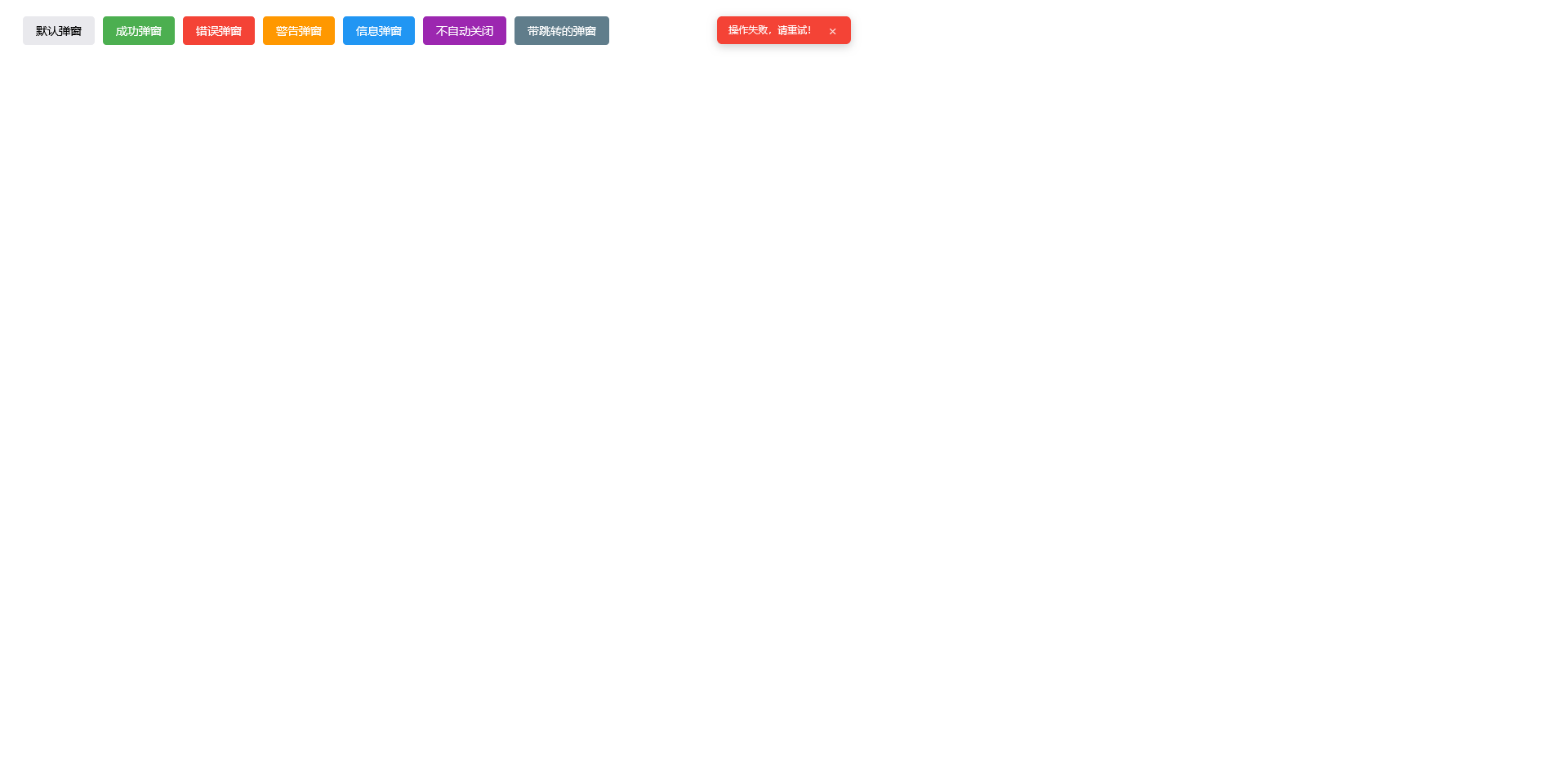
8个月前 这款js弹窗气泡代码非常简约,能够胜任日常弹窗业务。 ![火狐截图_2025-09...
9个月前 > 第一步在需要引入jquery库,这一步不能少,可以使用本地js或者下面的cdn或...
9个月前 在该项目中添加新的插件可按以下步骤操作: ##### 获取插件文件 准备一个...